/home/kueuepay/public_html/config/cache.php
<?php

use Illuminate\Support\Str;

return [

    /*
    |--------------------------------------------------------------------------
    | Default Cache Store
    |--------------------------------------------------------------------------
    |
    | This option controls the default cache connection that gets used while
    | using this caching library. This connection is used when another is
    | not explicitly specified when executing a given caching function.
    |
    */

    'default' => env('CACHE_DRIVER', 'file'),

    /*
    |--------------------------------------------------------------------------
    | Cache Stores
    |--------------------------------------------------------------------------
    |
    | Here you may define all of the cache "stores" for your application as
    | well as their drivers. You may even define multiple stores for the
    | same cache driver to group types of items stored in your caches.
    |
    | Supported drivers: "apc", "array", "database", "file",
    |         "memcached", "redis", "dynamodb", "octane", "null"
    |
    */

    'stores' => [

        'apc' => [
            'driver' => 'apc',
        ],

        'array' => [
            'driver' => 'array',
            'serialize' => false,
        ],

        'database' => [
            'driver' => 'database',
            'table' => 'cache',
            'connection' => null,
            'lock_connection' => null,
        ],

        'file' => [
            'driver' => 'file',
            'path' => storage_path('framework/cache/data'),
        ],

        'memcached' => [
            'driver' => 'memcached',
            'persistent_id' => env('MEMCACHED_PERSISTENT_ID'),
            'sasl' => [
                env('MEMCACHED_USERNAME'),
                env('MEMCACHED_PASSWORD'),
            ],
            'options' => [
                // Memcached::OPT_CONNECT_TIMEOUT => 2000,
            ],
            'servers' => [
                [
                    'host' => env('MEMCACHED_HOST', '127.0.0.1'),
                    'port' => env('MEMCACHED_PORT', 11211),
                    'weight' => 100,
                ],
            ],
        ],

        'redis' => [
            'driver' => 'redis',
            'connection' => 'cache',
            'lock_connection' => 'default',
        ],

        'dynamodb' => [
            'driver' => 'dynamodb',
            'key' => env('AWS_ACCESS_KEY_ID'),
            'secret' => env('AWS_SECRET_ACCESS_KEY'),
            'region' => env('AWS_DEFAULT_REGION', 'us-east-1'),
            'table' => env('DYNAMODB_CACHE_TABLE', 'cache'),
            'endpoint' => env('DYNAMODB_ENDPOINT'),
        ],

        'octane' => [
            'driver' => 'octane',
        ],

    ],

    /*
    |--------------------------------------------------------------------------
    | Cache Key Prefix
    |--------------------------------------------------------------------------
    |
    | When utilizing the APC, database, memcached, Redis, or DynamoDB cache
    | stores there might be other applications using the same cache. For
    | that reason, you may prefix every cache key to avoid collisions.
    |
    */

    'prefix' => env('CACHE_PREFIX', Str::slug(env('APP_NAME', 'laravel'), '_').'_cache_'),

];
Payment System
top

Simple Steps to Complete Your Payment Securely and Efficiently

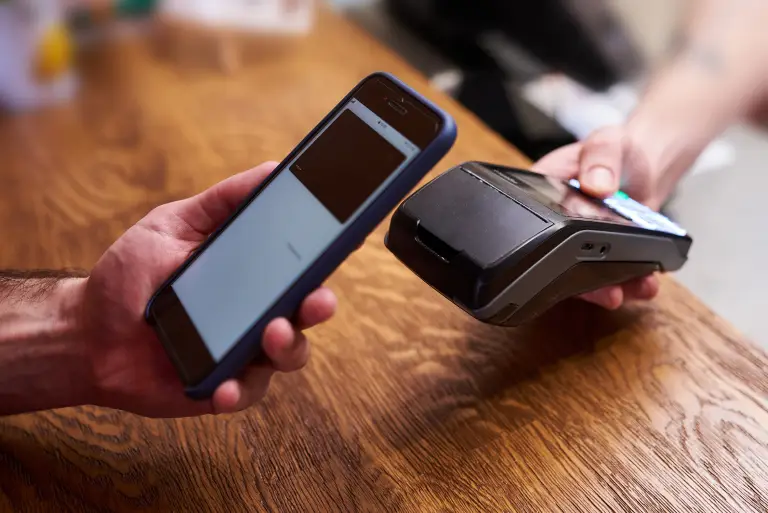
Making a payment on our website is quick and secure. Start by logging in or creating an account. Select your preferred payment method, input the required details, and review the information. Once you confirm everything is correct, click on the "Submit Payment" button. You’ll receive instant confirmation and can track your payment status through your account dashboard. It’s an easy and secure process.

  • Go to the Payment Section: Access the payment area on our website or app.
  • Choose Your Payment Method: Select your preferred payment option.
  • Enter Payment Details: Provide the necessary payment information.
  • Verify Your Information: Check that all details are correct.
  • Confirm Your Payment: Click "Submit Payment" to complete the transaction.
img